Wi-Fi Based Assistive Listening System
Following extensive testing when this new technology was first introduced in 2024, we were pleased to expand the “Listen Wi‑Fi” system across several venues in 2025, including the Amphitheater, Hall of Missions, Norton Hall, and Bratton Theater.
As of 2026, we are excited to further extend access to this technology in the Hall of Philosophy, Smith-Wilkes, and Roe Green Theater Center.
Listen Wi‑Fi allows patrons to easily access live audio for events and programs using their own smartphones, along with personal headphones or Bluetooth-enabled hearing aids, offering a more flexible and inclusive listening experience across our venues.
What do I need to be able to utilize this technology
You will need the following:
- A smartphone or tablet that can download apps to your phone. Both Android and IOS (Apple) devices will work.
- Your password to download apps from the app store of your device.
- A Bluetooth headphone or hearing aids that are already paired with your device, OR wire-connected headphones that work with your device
What are the benefits of this technology?
There are several benefits we can think of, including the following:
- The technology will enable patrons to use their own devices and headphones, thereby eliminating the need/hassle of getting a hearing device from an usher.
- We will continue to expand this technology to other Institutional venues. This means that your personal device will work with most Institutional venues and programming.
- The technology will allow multiple channels, which means that we can provide “live audio description” for blind patrons on a different channel. The same would be true if we ever scheduled a speaker who were to deliver a lecture in a language other than English, and a live English translation would be possible via this technology, or vice-versa.
- For patrons who are noise sensitive, they could bring their own noise-cancelling headphones to concerts and events and determine at what volume they want to experience the event. This may be especially helpful for neurodiverse patrons.
Before Arriving at the Amphitheater
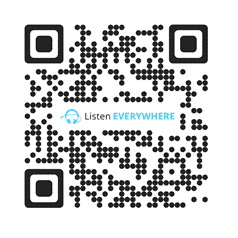
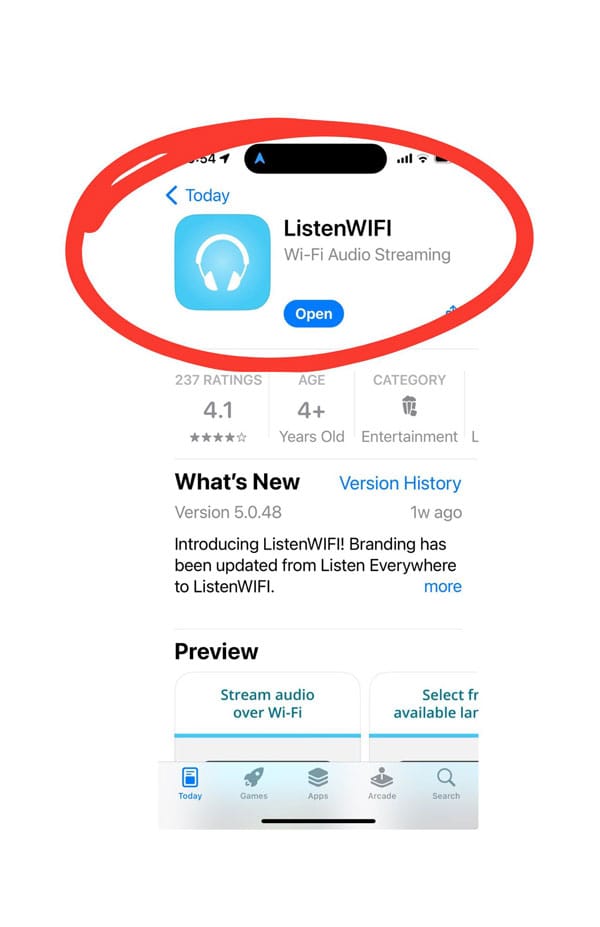
- Download the “Listen Wifi” App. Alternatively, you can open your app store and search for “ListenWifi” – please make sure to select the app with the logo shown in step #2 below.
- This is what the app and logo look like in the app store.
- Give the app the permissions it asks for. If asked, we suggest allowing the app to use your location when the app is in use. This step is not essential, but it will help you connect to the correct Wi-Fi servers.
- Make sure that your hearing aids, Bluetooth headphones, or wire connected headphones are working. Play any music or video on any app to make sure that you can hear the sound. This technology will work best if you have noise-cancelling headphones as they reduce the echo effect created by latency (explained below).
When You Arrive at the Venue
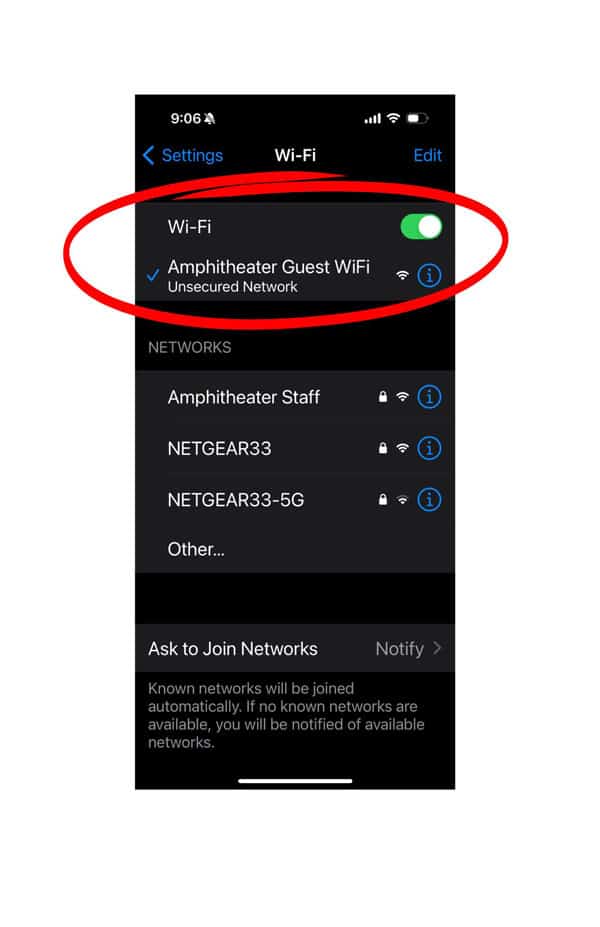
- Connect to the venue’s guest Wi-Fi once you are inside. Open “Settings”, select “Wi-Fi”, then find the following wifi networks (NOTE: you only have to do this once if you enable your device to remember Wi-Fi networks)
- Amphitheater: “Amphitheater Guest Wi-Fi” network.
- Hall of Philosophy: “HOP Listen”
- Bratton: “Bratton Listen”
- Norton: “Norton Listen”
- Smith-Wilkes: “Smith-Wilkes Hall Listen”
- Roe Green Theater Center: “RGTC Listen”
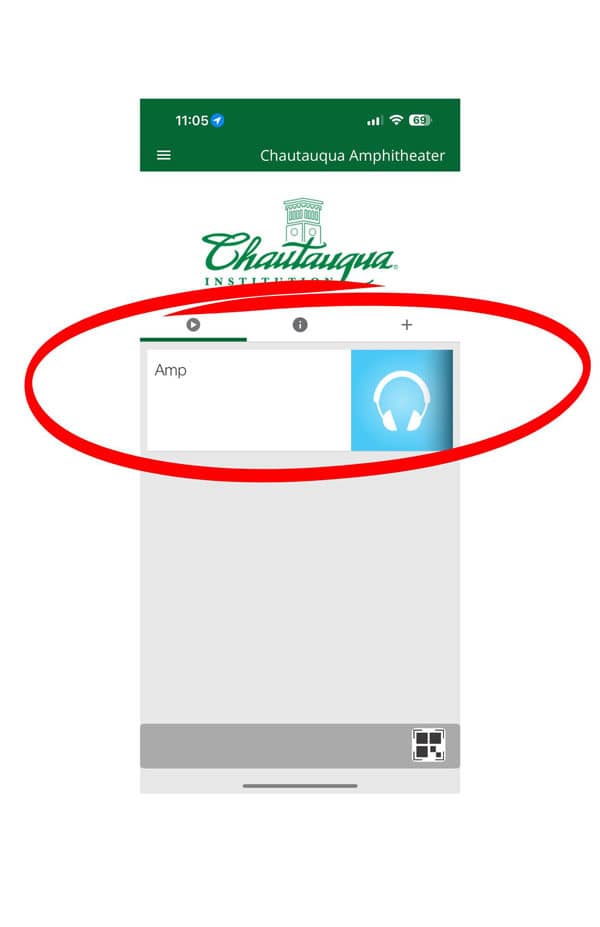
- Open the “Listen Wifi” app that you have already downloaded to your device. You should shortly see a screen that looks like this. Press the button that corresponds with your venue location name (e.g., “Amp” will appear at the Amphitheater).
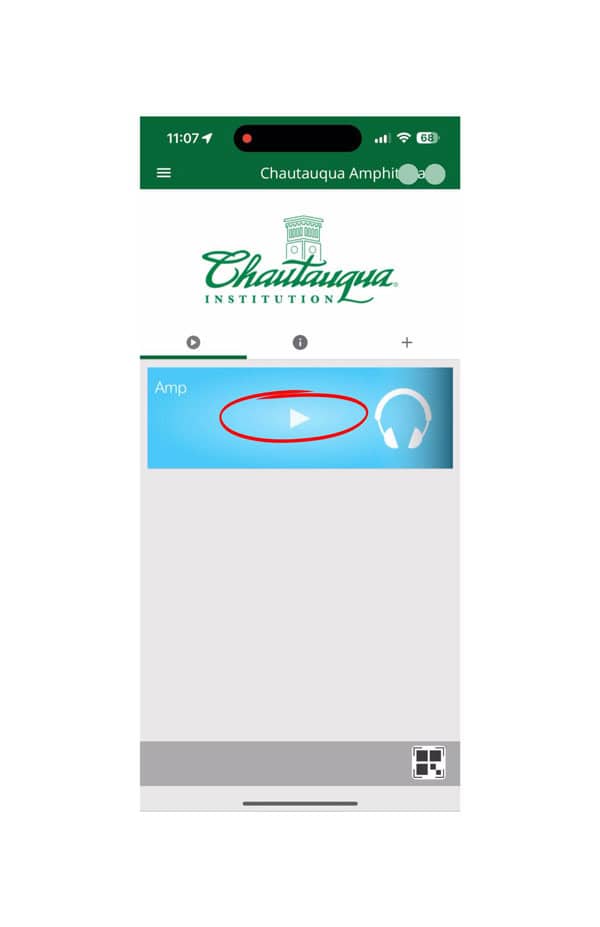
- After pressing the venue location button, a play icon will appear as shown below. Please press play
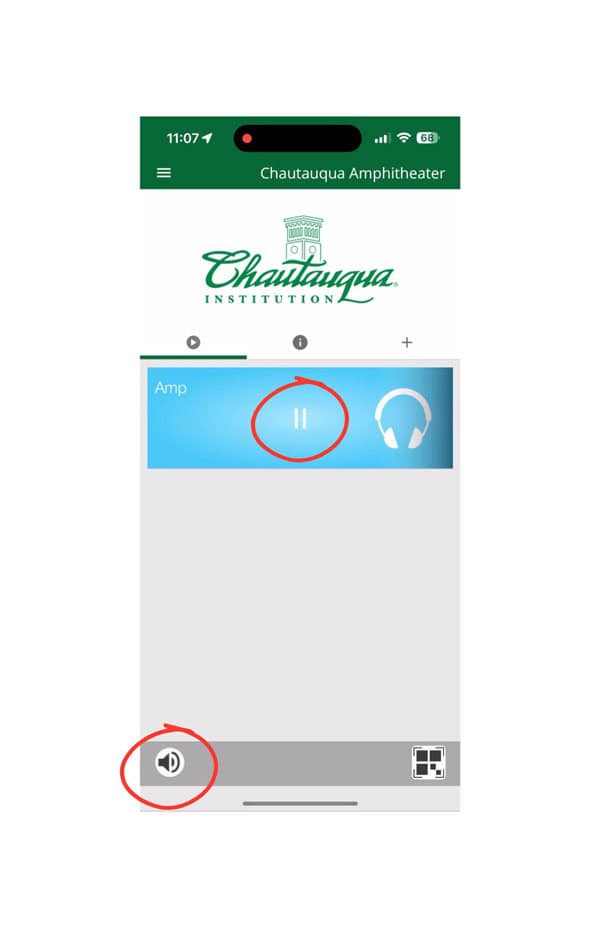
- Your screen should look this now and you should start hearing sounds on your device. Both a pause button and a speaker icon will appear as shown below.
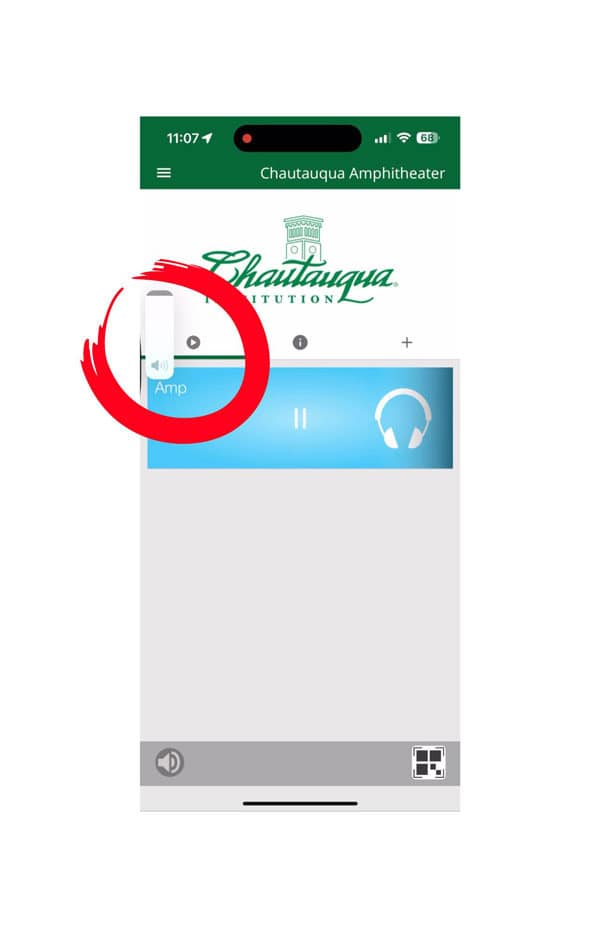
- Please use the volume up and down button on your device to adjust the volume of your device.
Can staff help me set this up?
YES! IT Services and Accessibility Staff will be available on Sundays at 2:30-3 p.m. right before the Sunday family entertainment event at the amphitheater at gate 4 (across from the Presbyterian House). It will be most helpful if you arrive to the amp with the app already downloaded on your device. A fully charged device would be very helpful.
I am experiencing an “echo.” What steps can I take to help with this?
This is new technology and our user feedback tells us that it works best for patrons with moderate to severe hearing loss. The “echo” effect is caused by “Latency”: This is the time difference between sounds coming out of the physical speakers at the amp and the sound/Wi-Fi signal reaching your device. This can create an echo effect for some listeners. Some ways to reduce this echo effect include:
- Consider the use of wired noise-cancelling headphones. The higher quality the noise cancelling headphones are, the better experience you might have. You may also have purchase a $3-$5 adapter to be able to have a wired connection between your phone and the headphones.
- Some hearing aids include a mute option, often accessed on the smartphone app for the hearing aid. Muting your hearing aid microphones will block or minimize the sound from the speakers in the amp, but will not mute the sounds from the Wi-Fi. This eliminates the echo and allows you to hear the program onstage with no distractions.
- Close all apps on your phone. These apps continue to run in the background and can add to the “latency” mentioned above. The only app that should ideally be open on your phone is the listen-wifi app.
- If the echo is getting worse over time, please press the “pause” button on the listen wifi app, wait a second, and then press the “play” button again. This eliminates the data buffering happening in the background, and can significantly reduce the echo. Based on how old your phone is, you might have to do this more than once during the lecture or performance.
- Wi-Fi routers can sometimes “lag,” and you might occasionally lose signal for a moment or two. One way to capture every word is to use captions at captions.chq.org.
Other Important Information
- Please never play the wifi streaming sound over the speakers of your phone without a headphone or hearing aid connected. That would be very disruptive to other patrons.
- We cannot provide you with headphones for your device. The whole point of this system is to enable patrons to use the phones/hearing aids that work best for them.
- Our current radio frequency (RF) based listening system will stay in place. This Wi-Fi technology is in addition to our existing system. Users will continue to be able to check out our free RF-based listening devices.
How do I request support or provide feedback?
Questions about this project can be sent to accessibility@chq.org. If you see us (Amit Taneja or Makayla Santiago-Froebel) walking around the grounds, please stop us and tell us about your experience! Alternatively, please send an email to accessibility@chq.org.